
Using Canvas, Google Classroom or Buzz?
You don't need this page or a code: Checkmark is built into your class. See the Canvas, Google Classroom or Buzz guide instead.
Step 1
Sign In and Join Your Class
At teach.checkmarkplagiarism.com, with your school Google or Microsoft account.
Once per class
1
Enroll With Your Teacher's Code
Click Enroll, type the code, then Enroll
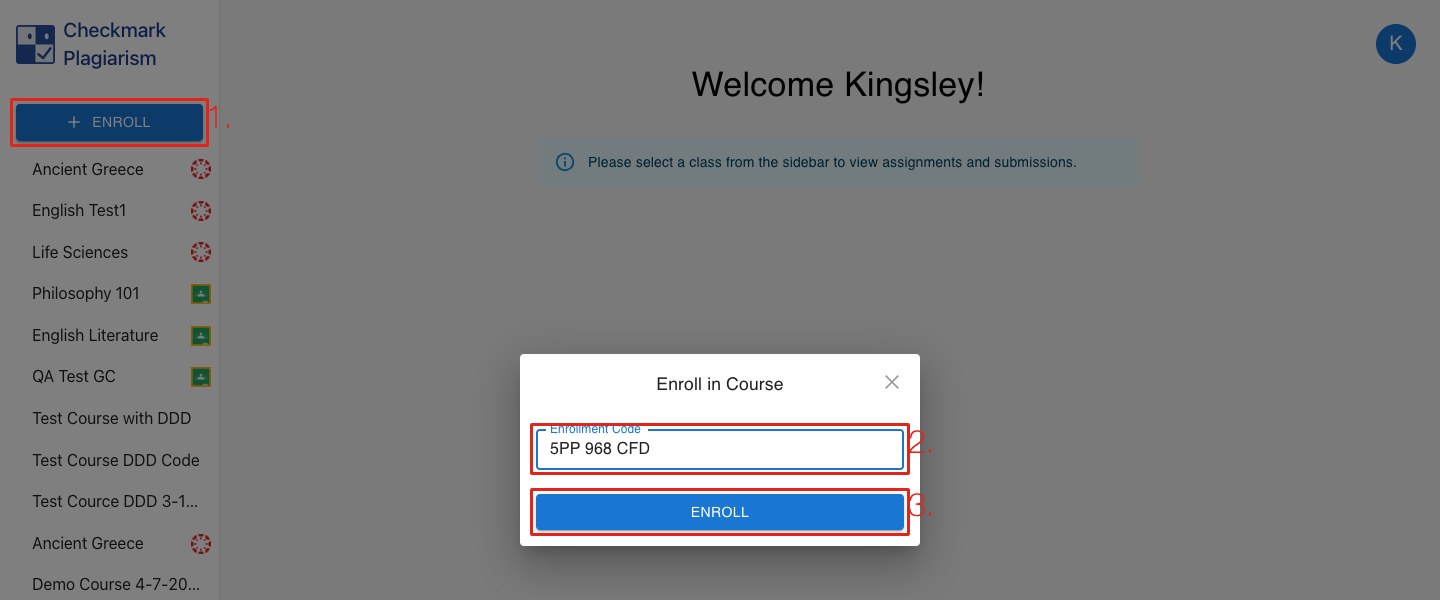
- • 1. Click + Enroll at the top left.
- • 2. Type the enrollment code your teacher gave you (spaces don't matter).
- • 3. Click Enroll. Your class appears in the list on the left.
Step 2
Submit Your Work
Open your class, then the upload arrow next to the assignment.
Each assignment
2
Upload a Word File, or Pick From Google Drive or OneDrive
Then click Submit
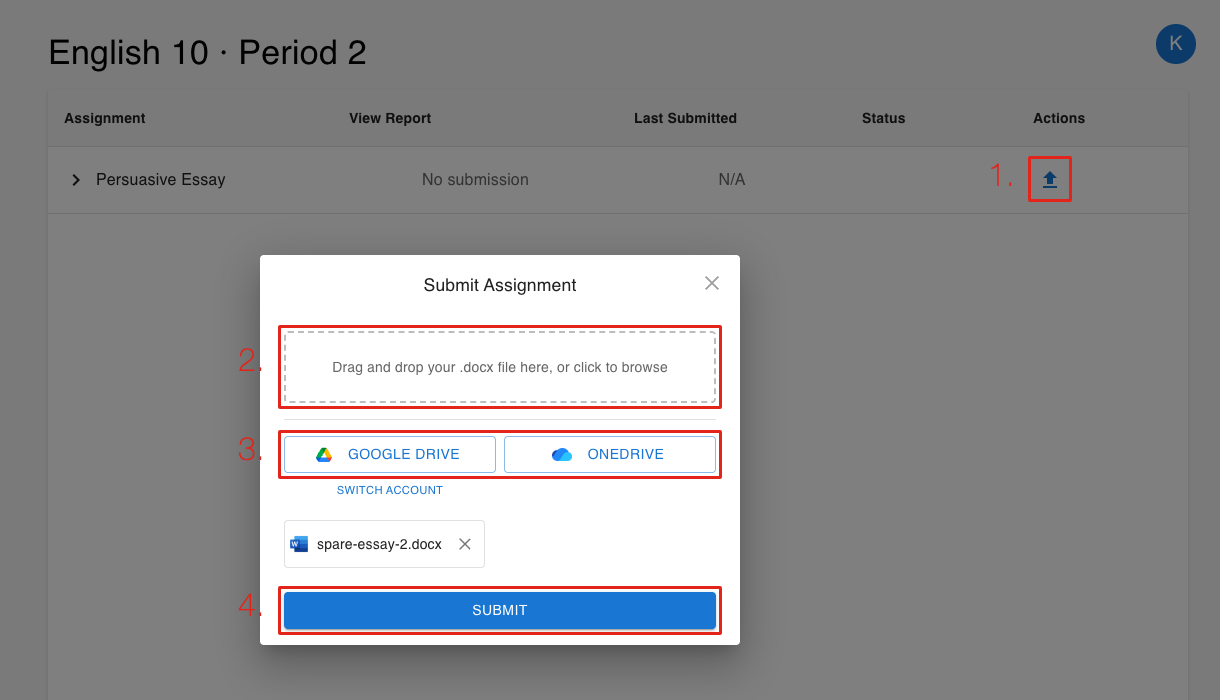
- • 1. Click the upload arrow in the Actions column.
- • 2. Drag in your .docx file, or click to browse.
- • 3. Or choose Google Drive or OneDrive.
- • 4. Click Submit. The row shows your submission and, when it's ready, a View Report link.
Frequently Asked Questions
It says my teacher doesn't have an active plan or license.
Your work wasn't submitted. Let your teacher know; they need to sort out their Checkmark account.
My code doesn't work.
Check it with your teacher. Each class has its own code, and a teacher can reset it.
How do I leave a class?
Click the gear at the bottom left, then the trash icon next to the class. Your submissions for that class are removed.
Which files can I submit?
Word (.docx) files, Google Docs from your Drive, and Word files from OneDrive.
Still Stuck?
Ask your teacher first. For technical problems, we're here too.