
Write or Submit in the Checkmark Box
On assignments where your teacher turned Checkmark on, a Checkmark box sits under the assignment description.
Write, or Bring In Your File
Type in the box, or use the buttons above it
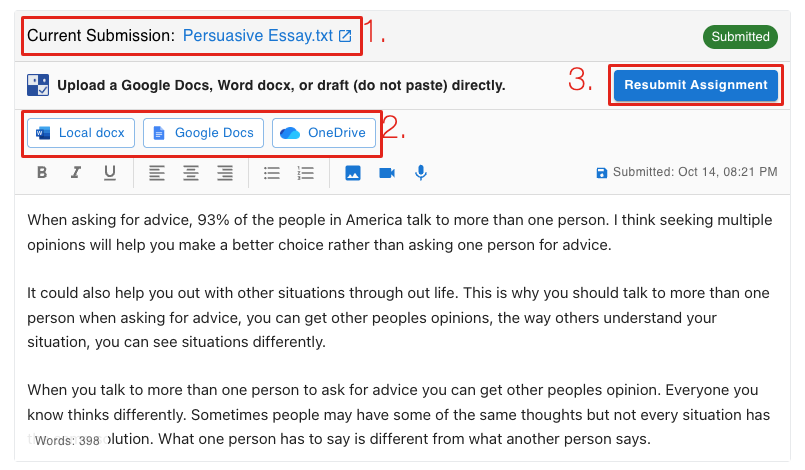
- • 1. Your current submission, once you've submitted.
- • 2. Local docx, Google Docs or OneDrive to bring in a file. Or just type in the box: your draft saves as you go.
- • 3. Submit Assignment (or Resubmit Assignment to replace it).
Refresh Canvas
So Canvas shows your new submission too
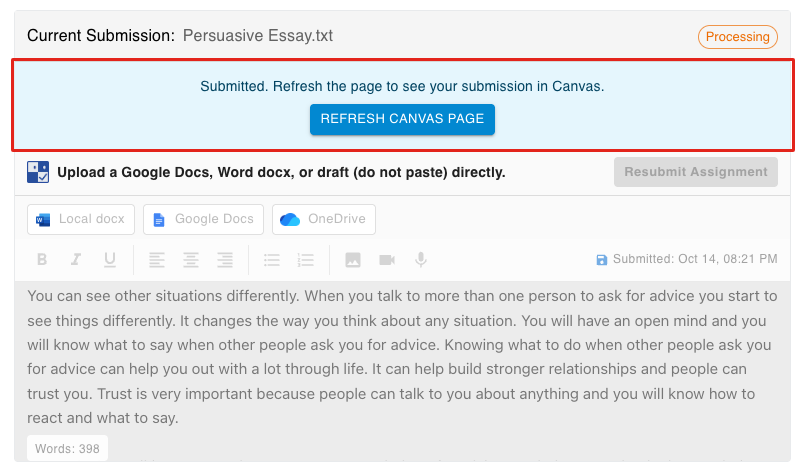
After you submit, click Refresh Canvas page. The box shows Processing, then Submitted.
Draft Here, Don't Paste
Writing in the Checkmark box (or your own Google Doc) shows your teacher how your essay came together. Pasting a finished essay in from somewhere else shows up as pasted text in your teacher's report.
Submit the Usual Canvas Way
Some assignments use Canvas's own Submit button instead. Checkmark checks those automatically.
File Upload or Text Entry
Start Assignment, pick File Upload or Text Entry, then Submit Assignment.
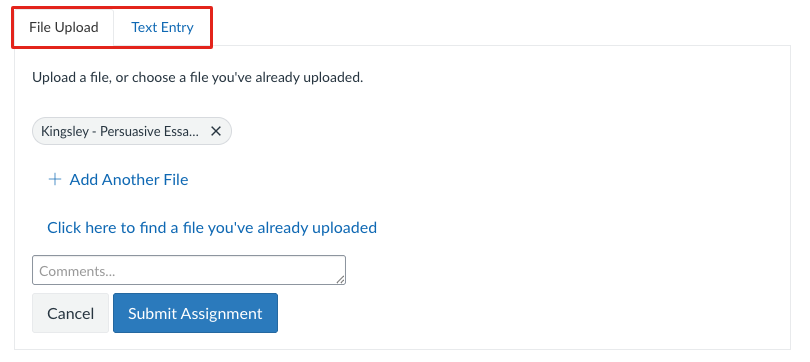
Word (.docx), PDFs with real text, and .txt files are checked.
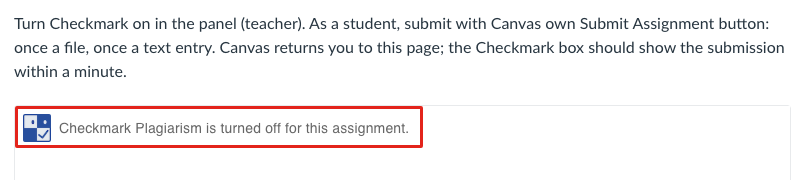
“Turned off for this assignment”
Your teacher isn't using Checkmark on this one. Submit the usual way.
Your Report
When your teacher shares it, your report shows what Checkmark found.
Open Your Report
Click your submission's file name in the Checkmark box
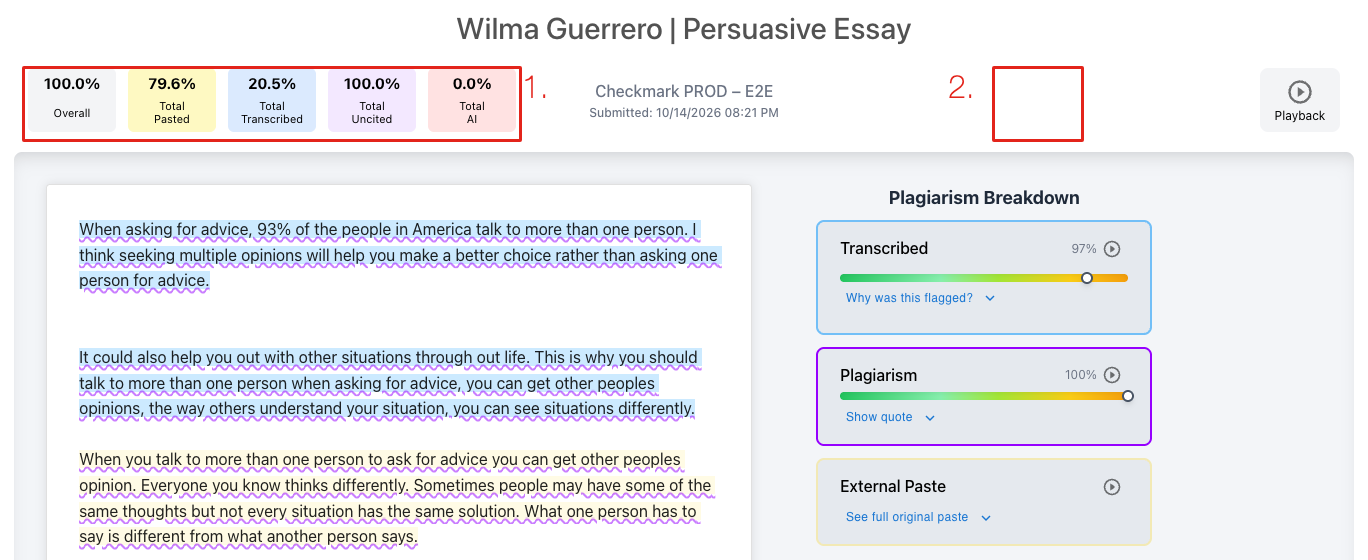
- • 1. The scores: pasted, transcribed, uncited and AI-like text.
- • 2. Playback replays how the essay was written.
Frequently Asked Questions
The Google Docs button asks me to sign in.
Canvas still shows my old submission.
Can I submit again?
I see an error or a blank box.
Still Stuck?
Ask your teacher first. For technical problems, we're here too.