
Step 1: Open the Assignment
Sign in with your school Google or Microsoft account and open the assignment from your course page. If your class runs through Canvas, Google Classroom, or Buzz, you'll reach Checkmark from the assignment there - same steps either way.
Your Assignment Page
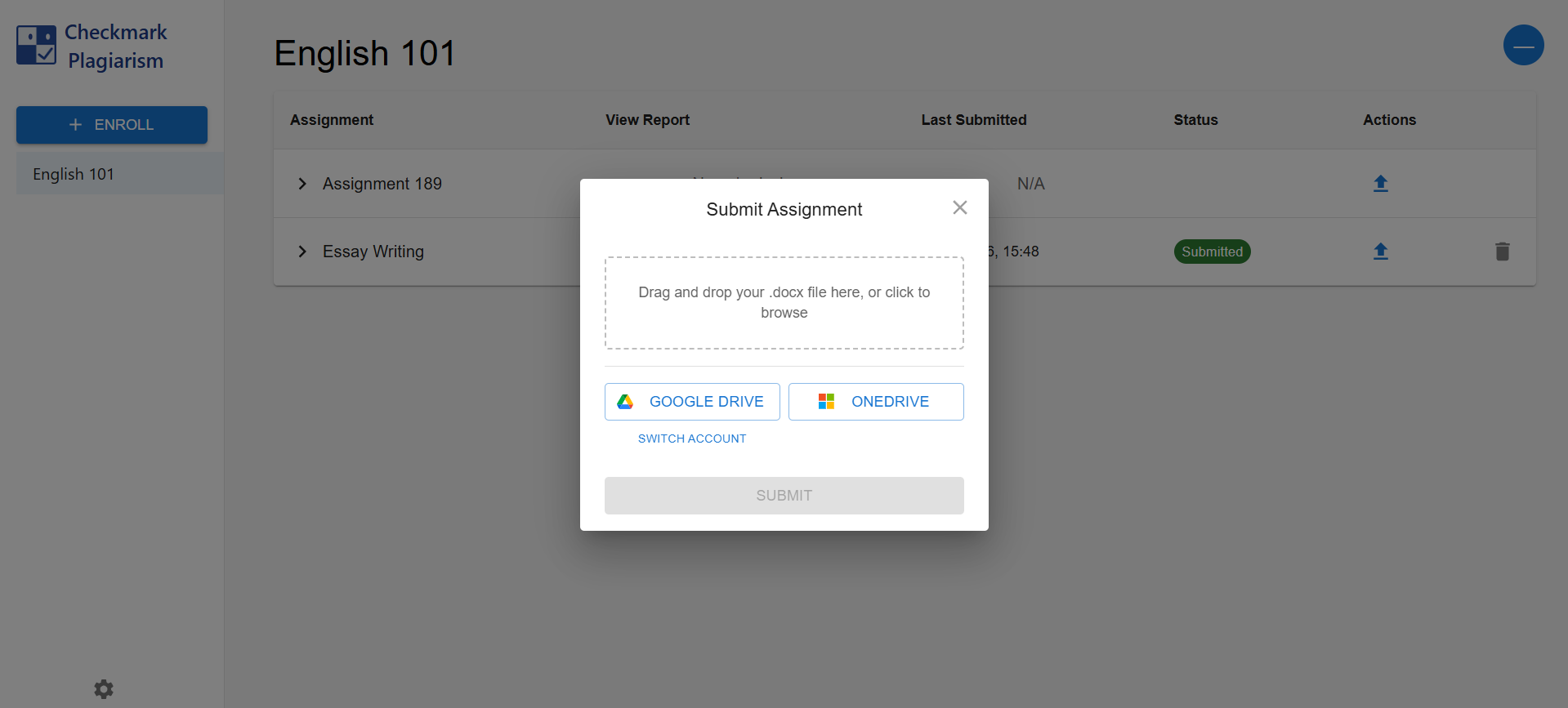
Step 2: Pick How You Submit
Depending on how your teacher set up the assignment, you'll have up to three ways to hand in your work.
Upload a Word Doc
Drag and drop your .docx file (up to 10 MB), or click to browse. That's it.
Google Drive
Pick a Google Doc from your own Drive. Submit the doc you actually wrote in - its revision history shows your drafting work.
OneDrive
Working in Microsoft 365? Connect OneDrive and pick your document from there.
The Submission Box
Choose one source, hit Submit, and you're done - you'll see a confirmation and your submission status on the assignment page.
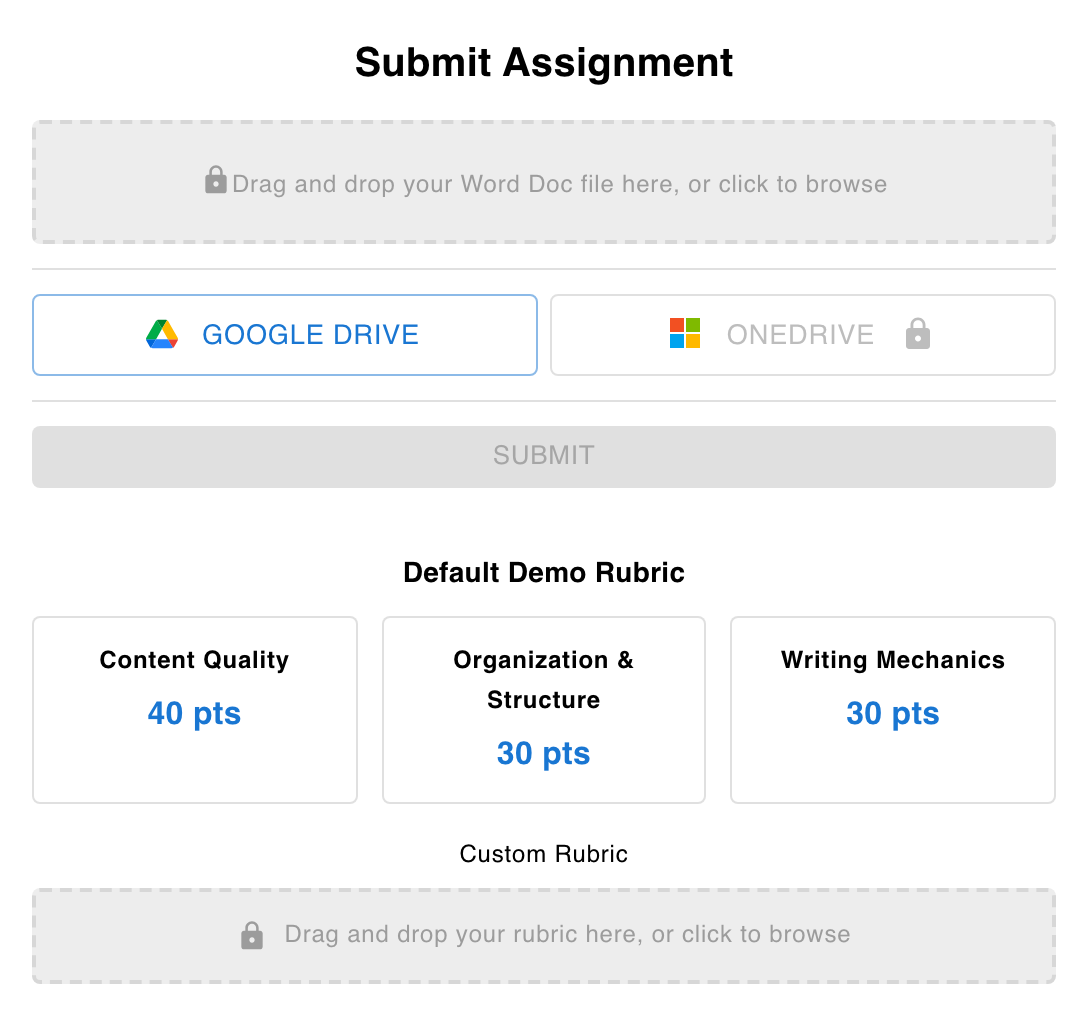
Typing Directly? Even Easier.
Some assignments - especially in Canvas and Buzz - give you a Checkmark essay box right inside the assignment. Just write. Your work saves as you type, and there's nothing to upload.
Why the editor is your friend
When you type in the editor (or write in Google Docs), Checkmark can see your real writing process - drafts, edits, and time spent. That history is the strongest proof that your work is your own.
What Happens After You Submit
Analysis Runs
Your submission shows as Processing while Checkmark analyzes it - usually just a few minutes.
Your Teacher Reviews
Teachers see the full report. Grades and feedback only reach you after your teacher reviews and publishes them.
Your Work Stays Yours
Your essays aren't used to train AI models or sold - see our security page for the details.
Stuck on Something?
Check the enrollment guide, or ask your teacher to reach out to us.