
Use a Google Doc
Checkmark checks Google Docs in Classroom. Word files, PDFs and other attachments can't be checked, so write in a Doc and turn that in.
Turning in
Turn In Your Work
Nothing to install: Checkmark is already attached to the assignment.
Student steps
1
Open the Assignment
Checkmark Plagiarism is listed under Your work
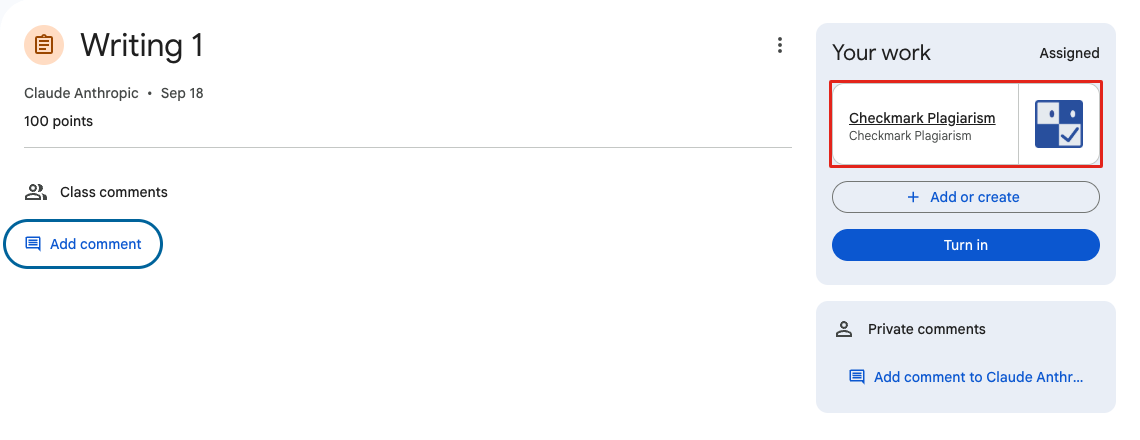
Opening the Checkmark attachment before you turn anything in shows “No submission detected”. That's expected.
2
Create or Attach Your Google Doc
Add or create › Docs
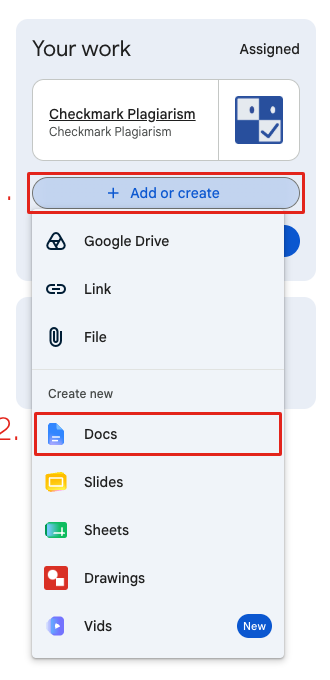
- • 1. Click Add or create.
- • 2. Choose Docs for a new Doc, or Google Drive for one you already started.
3
Turn It In
Both attachments are submitted together
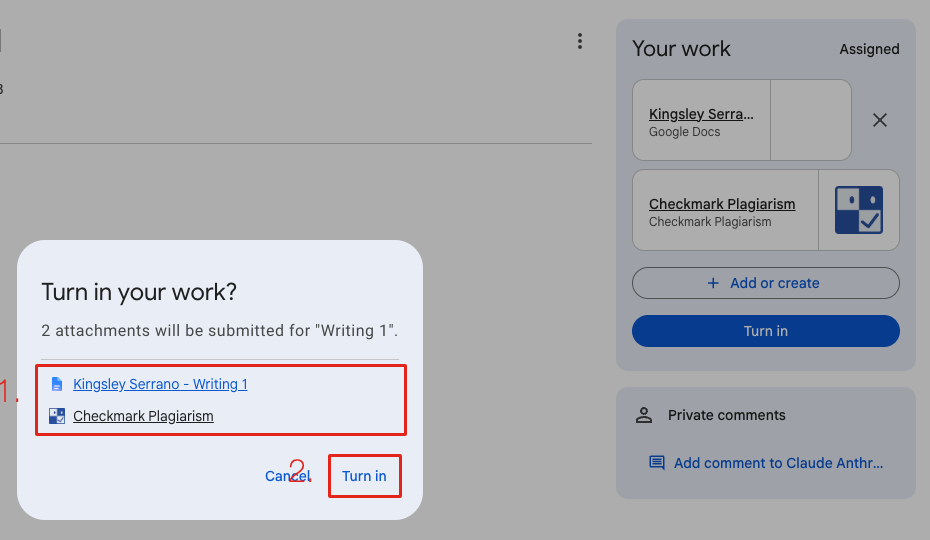
- • 1. Your Doc and the Checkmark attachment are listed.
- • 2. Click Turn in.
4
See Your Report
Open the Checkmark attachment again
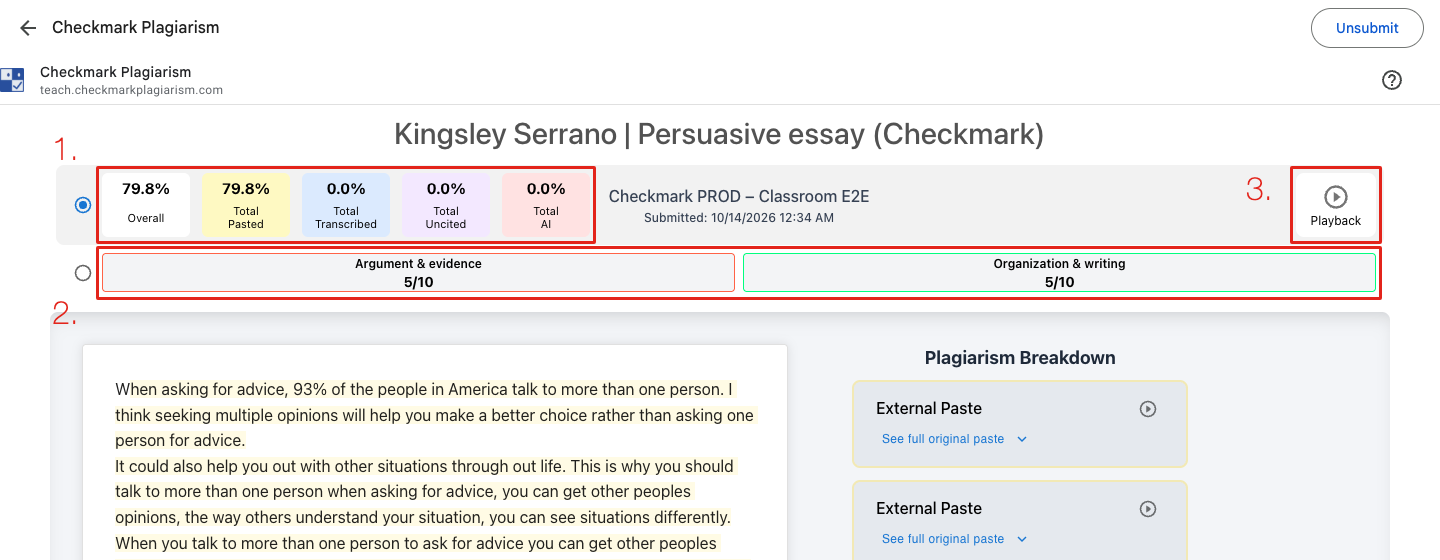
- • 1. Your scores. 2. Rubric scores, once your teacher publishes grades.
- • 3. Playback replays how your Doc was written.
Write in Your Doc, Don't Paste
Checkmark reads your Doc's version history. Writing it in the Doc shows your teacher how your essay came together; pasting a finished essay in shows up as pasted text.
Frequently Asked Questions
It still says “No submission detected” after I turned in.
Give it a minute, then close and reopen the Checkmark attachment. If it still says that, let your teacher know.
It asks me to sign in with Google.
Choose your school Google account. Checkmark only reads the Docs you turn in for this class.
Can I unsubmit and fix my work?
Yes. Click Unsubmit in Classroom, edit your Doc, and turn it in again. Checkmark checks the new version.
Where's the old Google Docs add-on?
It's been retired. Checkmark now lives inside Google Classroom as an attachment, so there's nothing to install.
Still Stuck?
Ask your teacher first. For technical problems, we're here too.