
Most Schools Should Use Dynamic Registration
The Dynamic Registration guide does the same thing with one URL and no JSON. Use this manual setup only if your Canvas can't use Dynamic Registration, or we've asked you to.
Before You Start: Get Your Configuration From Us
Email support@checkmarkplagiarism.com. We send an LTI 1.3 configuration made for your school (it includes your school's own signing key), and we turn Checkmark on once you send back your keys.
- • You need a Canvas admin account.
- • Have our JSON configuration ready before step 2.
Watch: Manual Setup in 40 Seconds
Create the LTI Key
Paste the configuration we sent you into a new LTI developer key.
Open + Developer Key › LTI Key
Admin › Developer Keys
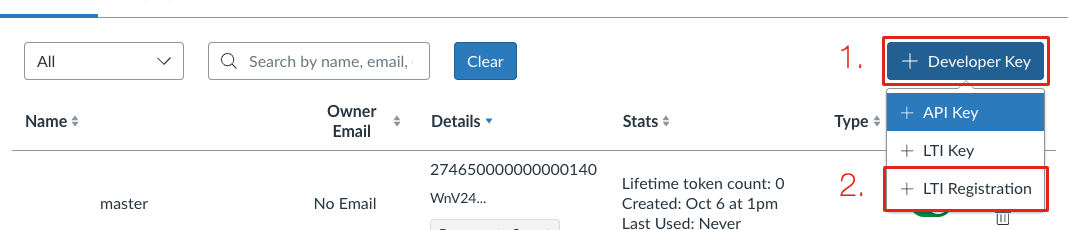
Click + Developer Key (1), then choose LTI Key from the menu.
Paste Our Configuration
Then click Save
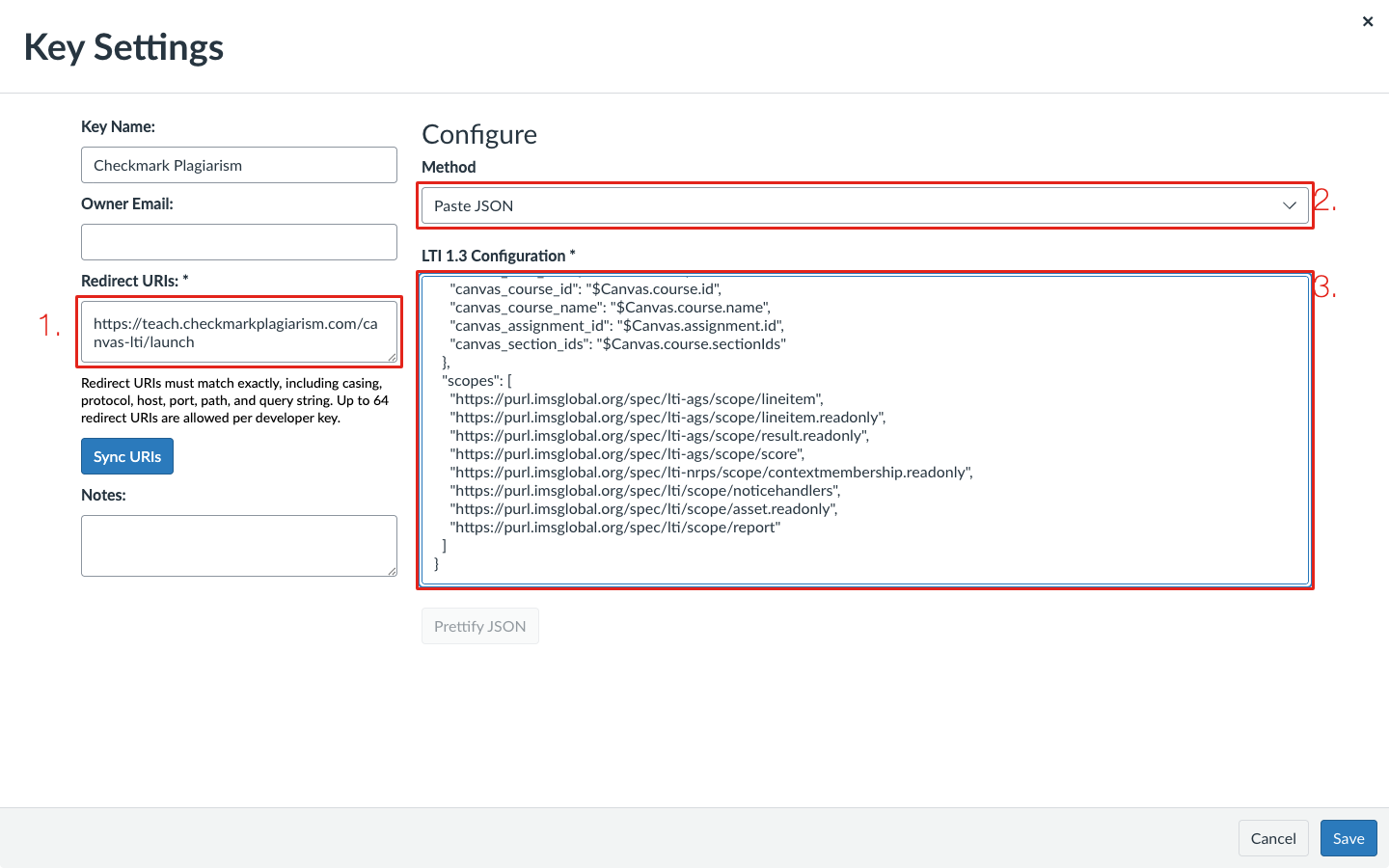
- • Key Name: Checkmark Plagiarism.
- • 1. Redirect URIs: the launch URL below.
- • 2. Method: Paste JSON.
- • 3. Paste the JSON we sent, then click Save.
Turn the Key On and Copy Its Client ID
Back in the Developer Keys list

- • 1. The number under Details is the Client ID. Copy it.
- • 2. Switch the key ON.
Install It by Client ID
Admin › Settings › Apps › + App
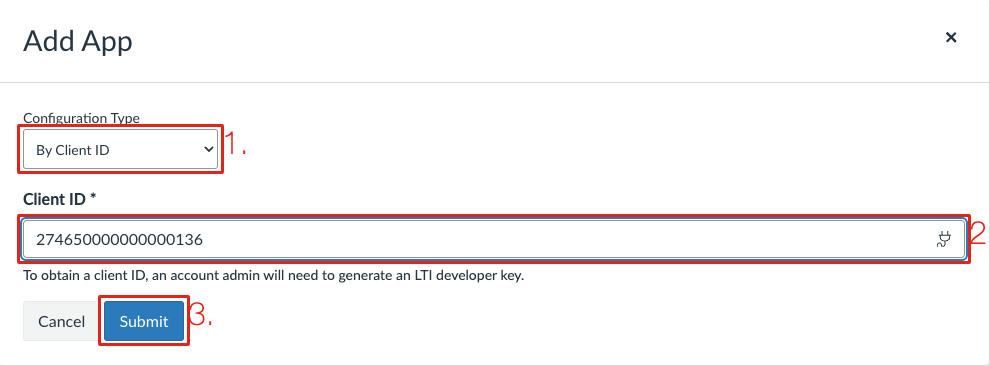
- • 1. Configuration Type: By Client ID.
- • 2. Paste the Client ID from step 3.
- • 3. Click Submit, then Install.
Add an API Key
Lets Checkmark read your courses, rosters and assignments, and post results.
Create an API Key for Checkmark
One more developer key, so Checkmark can read courses and rosters
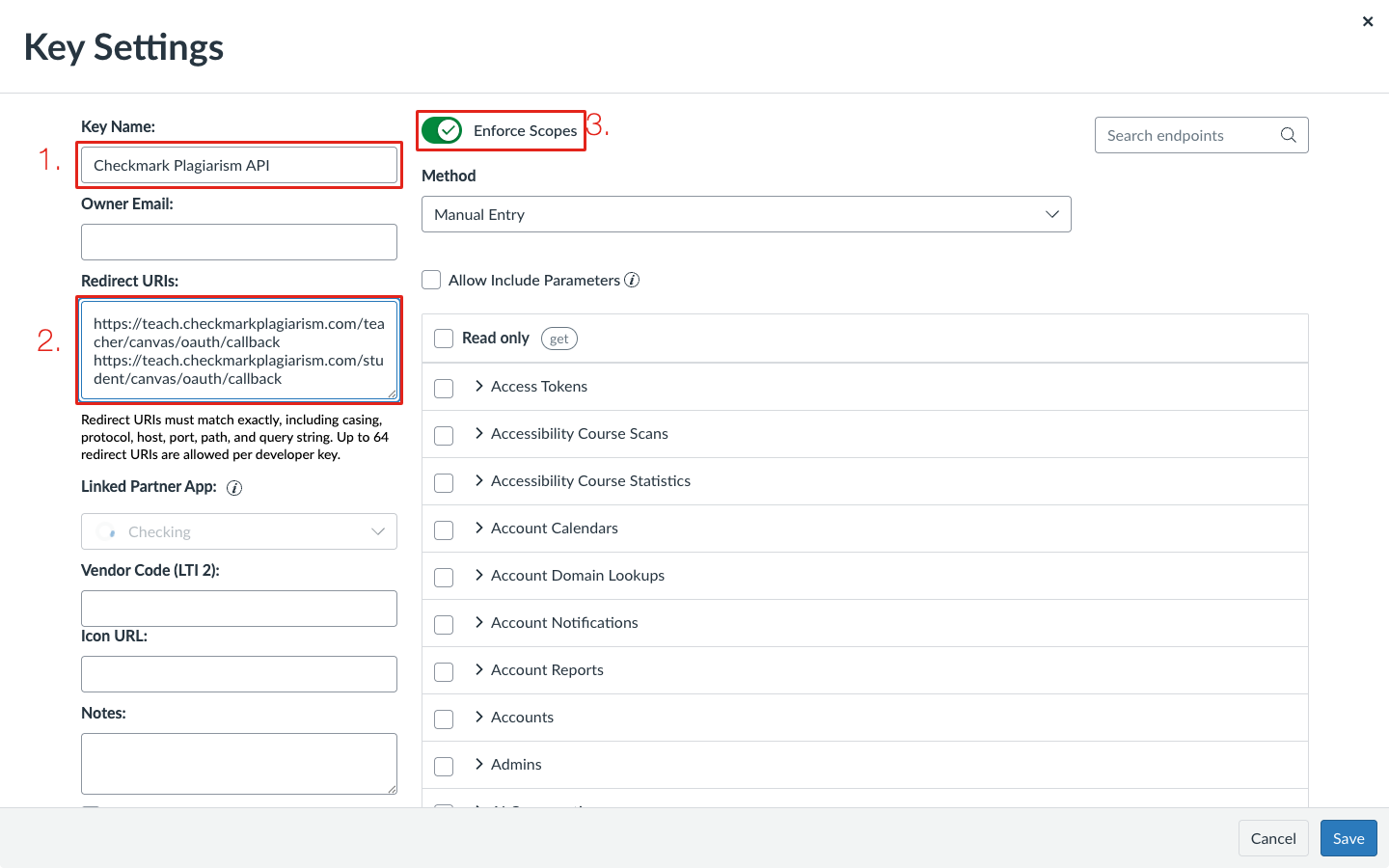
- • In Admin › Developer Keys, click + Developer Key and choose API Key.
- • 1. Name it, for example Checkmark Plagiarism API.
- • 2. Paste both redirect URIs, one per line.
- • 3. Turn on Enforce Scopes and tick the scopes listed here.
- • Click Save, then switch the key to ON in the list.
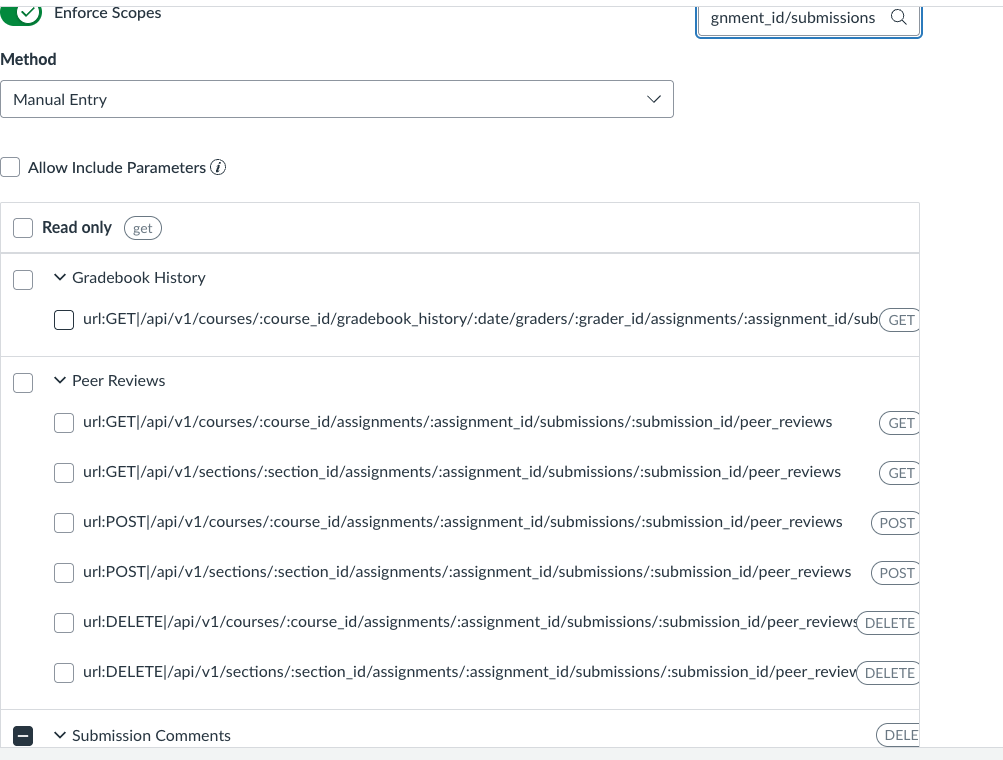
Tip: type part of each path into Search endpoints to find it quickly.
Required scopes (22)
- url:GET|/api/v1/courses/:course_id/assignments
- url:GET|/api/v1/courses/:course_id/assignments/:id
- url:GET|/api/v1/courses/:course_id/assignments/:assignment_id/overrides
- url:GET|/api/v1/users/:user_id/courses
- url:GET|/api/v1/courses/:course_id/users
- url:GET|/api/v1/courses/:id
- url:GET|/api/v1/courses/:course_id/enrollments
- url:GET|/api/v1/sections/:section_id/enrollments
- url:GET|/api/v1/users/:user_id/enrollments
- url:GET|/api/v1/courses/:course_id/sections
- url:GET|/api/v1/sections/:id
- url:GET|/api/v1/courses/:course_id/assignments/:assignment_id/submissions/:user_id
- url:GET|/api/v1/courses/:course_id/assignments/:assignment_id/submissions
- url:PUT|/api/v1/courses/:course_id/assignments/:assignment_id/submissions/:user_id
- url:POST|/api/v1/courses/:course_id/assignments/:assignment_id/submissions
- url:POST|/api/v1/courses/:course_id/assignments/:assignment_id/submissions/:user_id/files
- url:DELETE|/api/v1/courses/:course_id/assignments/:assignment_id/submissions/:user_id/comments/:id
- url:GET|/api/v1/courses/:course_id/quizzes/:quiz_id/questions
- url:POST|/api/v1/courses/:course_id/quizzes/:quiz_id/questions
- url:PUT|/api/v1/courses/:course_id/quizzes/:quiz_id/questions/:id
- url:DELETE|/api/v1/courses/:course_id/quizzes/:quiz_id/questions/:id
- url:POST|/api/v1/courses/:course_id/quizzes/:id/reorder
Last Step: Send Us Your Keys
Email support@checkmarkplagiarism.com with the LTI key's Client ID and the API key's Key ID and secret (send the secret in a separate message, or ask us for a secure link).
We finish the connection and turn Checkmark on. Then see the Canvas teacher guide.