
Before You Start: Contact Us
Registering in Canvas creates the connection, but Checkmark stays off for your school until we turn it on. Email support@checkmarkplagiarism.com before or right after you register, and we'll link the registration to your school and license.
- • You need a Canvas admin account (Admin › Developer Keys).
- • It takes about 10 minutes in Canvas. We usually finish our side within one business day.
- • Self-hosted Canvas (not on Instructure's cloud)? Tell us your Canvas address first, so we can approve it.
Watch: Dynamic Registration in 45 Seconds
Every click, from Developer Keys to sending us your API key.
Register Checkmark in Canvas
Creates the Checkmark key with the right permissions and placements.
Open + Developer Key › LTI Registration
Admin › Developer Keys
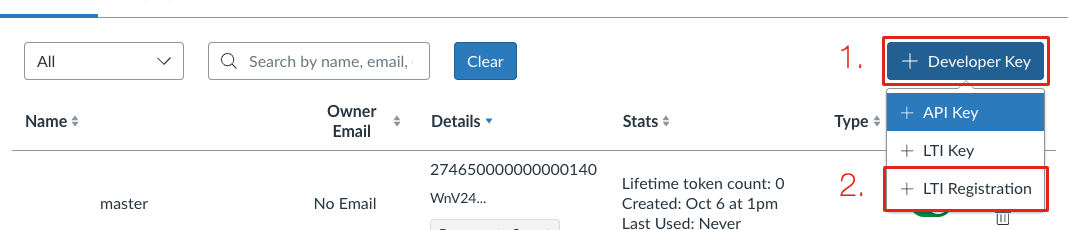
- • 1. Click + Developer Key.
- • 2. Choose LTI Registration.
Paste the Registration URL
Then click Continue
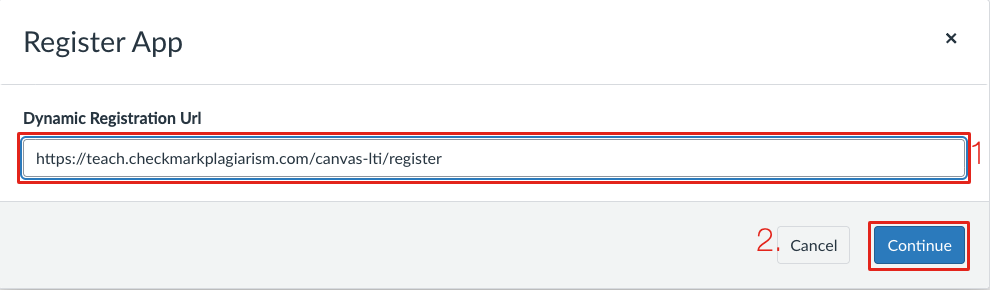
Keep the Defaults and Enable
Canvas shows what Checkmark asks for
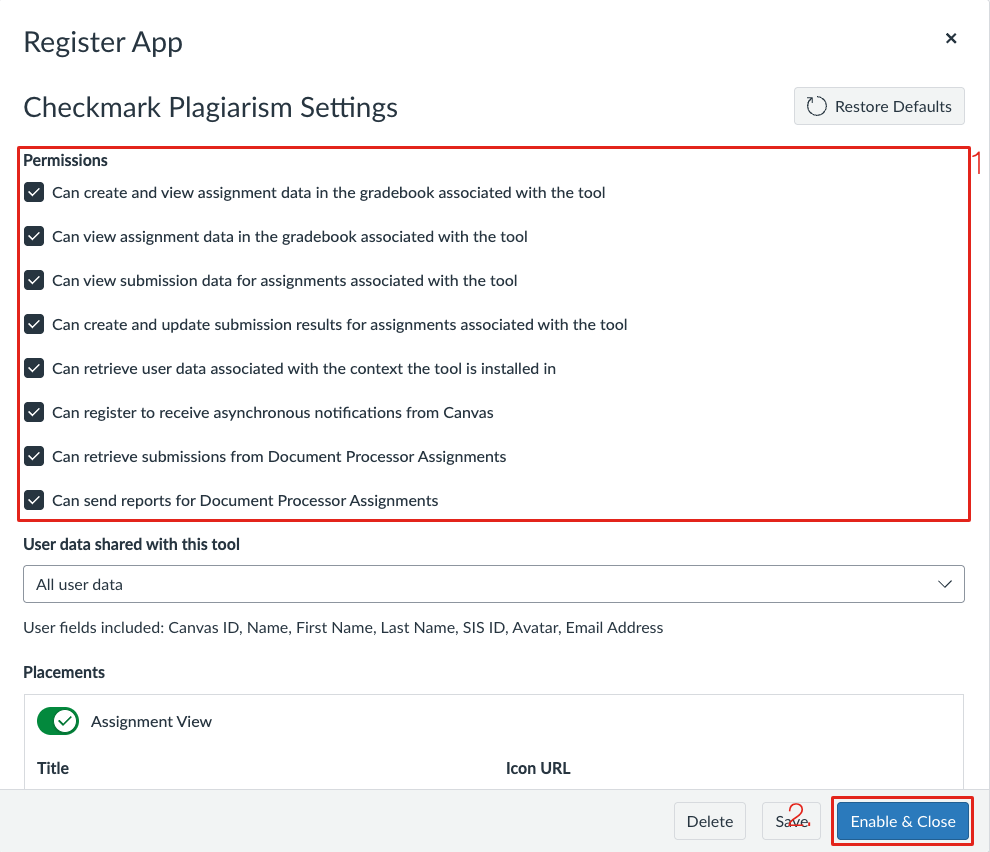
- • 1. Leave every permission checked and User data shared on All user data.
- • Placements: Assignment View and Assignment Document Processor (both on).
- • 2. Click Enable & Close.
Check the Key Is On
It appears at the top of Developer Keys

- • The State switch should be green (ON).
- • Note the number under Details: it's the key's Client ID. Include it in your email to us.
Make It Available to Your Courses
Canvas installs new apps as Not Available. Turn it on for your account (or just some sub-accounts).
Open Checkmark in Admin › Apps
Or click View in Canvas Apps on the key
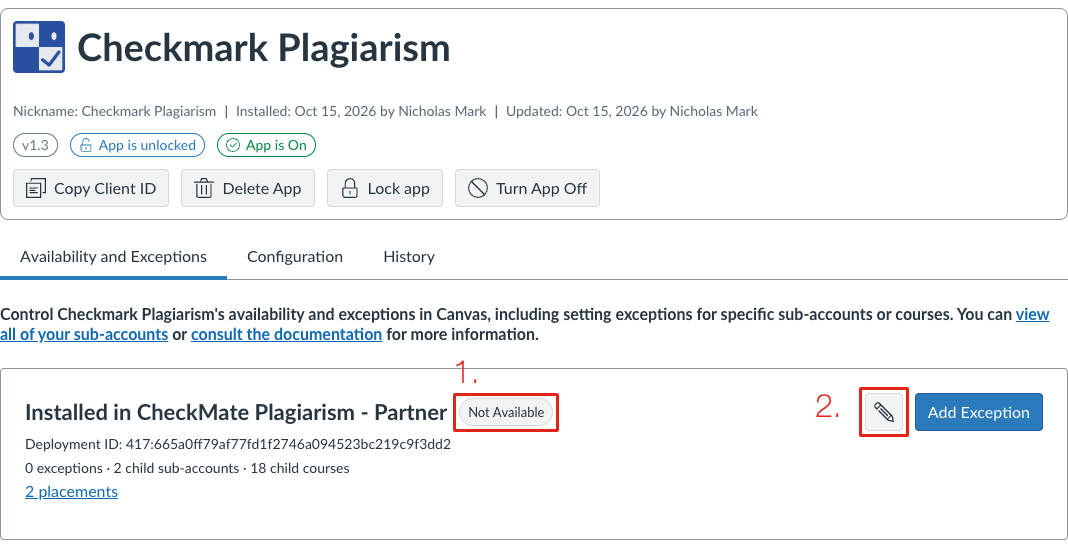
- • 1. It starts as Not Available.
- • 2. Click the pencil to edit availability.
Choose Available, then Save
Applies to every sub-account and course below it
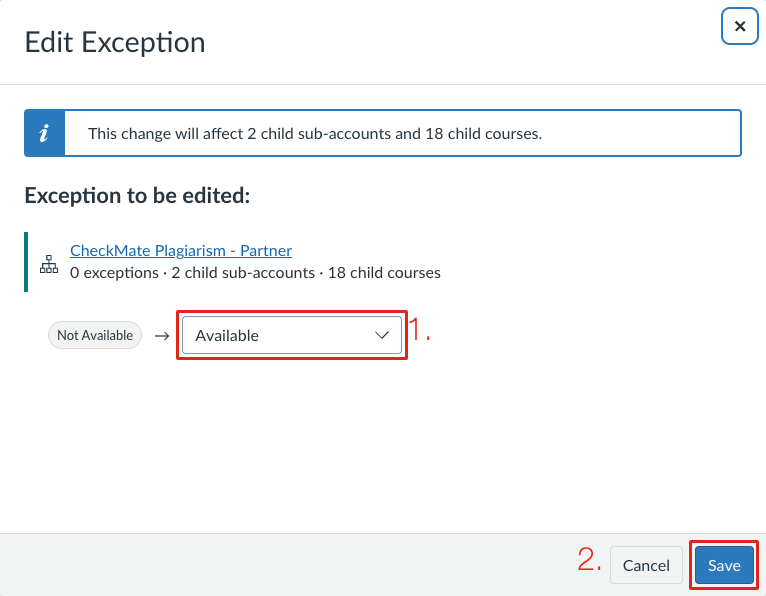
Want it in only some schools? Leave the root Not Available and use Add Exception for those sub-accounts instead.
Add an API Key
Lets Checkmark read your courses, rosters and assignments, and post results.
Create an API Key for Checkmark
One more developer key, so Checkmark can read courses and rosters
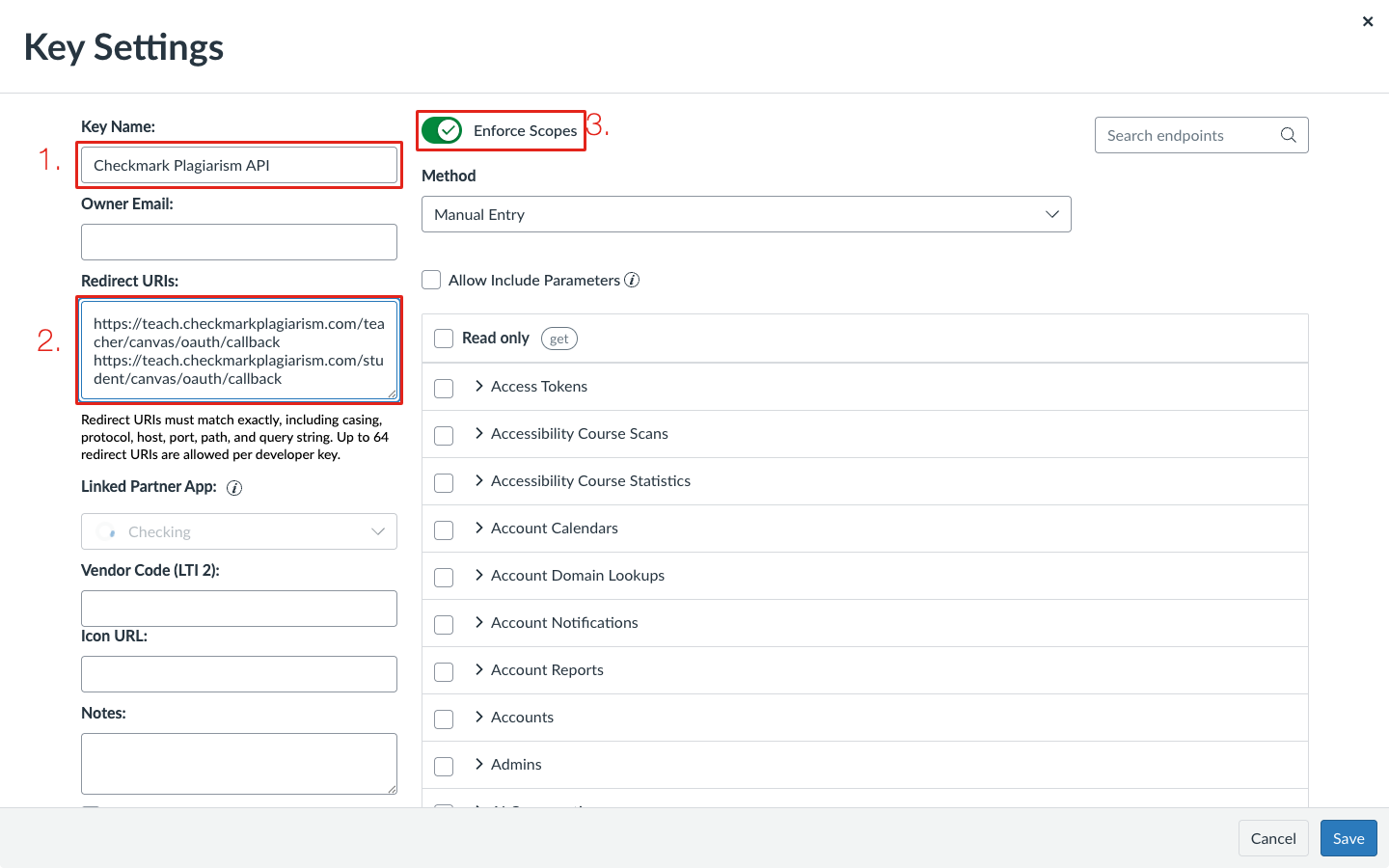
- • In Admin › Developer Keys, click + Developer Key and choose API Key.
- • 1. Name it, for example Checkmark Plagiarism API.
- • 2. Paste both redirect URIs, one per line.
- • 3. Turn on Enforce Scopes and tick the scopes listed here.
- • Click Save, then switch the key to ON in the list.
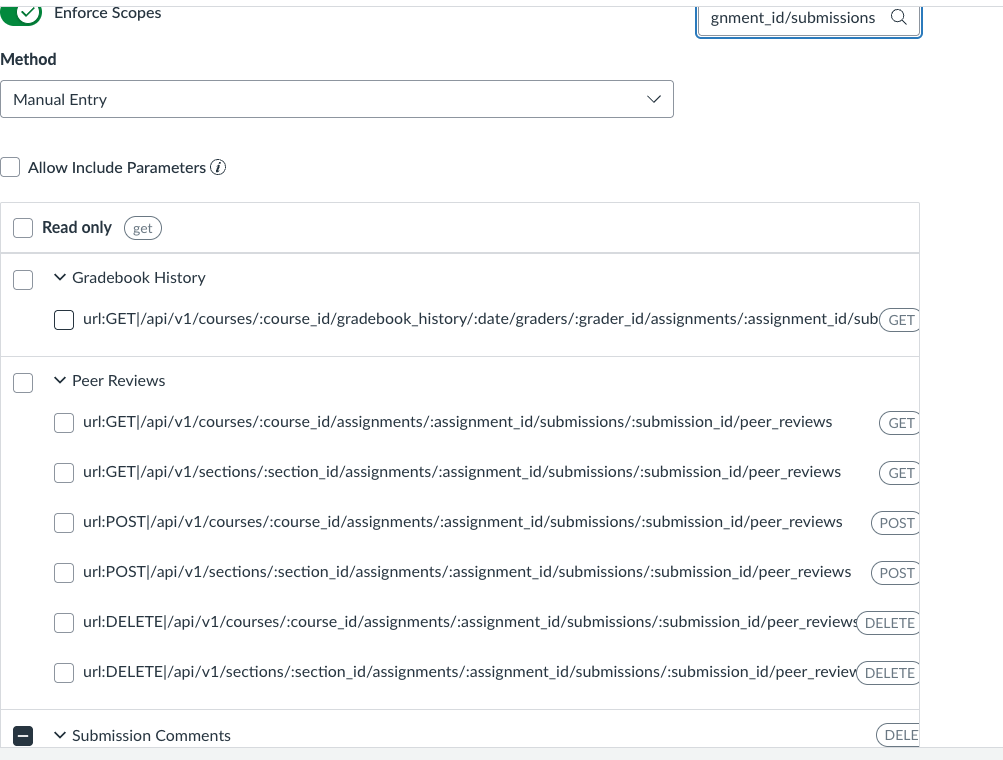
Tip: type part of each path into Search endpoints to find it quickly.
Required scopes (22)
- url:GET|/api/v1/courses/:course_id/assignments
- url:GET|/api/v1/courses/:course_id/assignments/:id
- url:GET|/api/v1/courses/:course_id/assignments/:assignment_id/overrides
- url:GET|/api/v1/users/:user_id/courses
- url:GET|/api/v1/courses/:course_id/users
- url:GET|/api/v1/courses/:id
- url:GET|/api/v1/courses/:course_id/enrollments
- url:GET|/api/v1/sections/:section_id/enrollments
- url:GET|/api/v1/users/:user_id/enrollments
- url:GET|/api/v1/courses/:course_id/sections
- url:GET|/api/v1/sections/:id
- url:GET|/api/v1/courses/:course_id/assignments/:assignment_id/submissions/:user_id
- url:GET|/api/v1/courses/:course_id/assignments/:assignment_id/submissions
- url:PUT|/api/v1/courses/:course_id/assignments/:assignment_id/submissions/:user_id
- url:POST|/api/v1/courses/:course_id/assignments/:assignment_id/submissions
- url:POST|/api/v1/courses/:course_id/assignments/:assignment_id/submissions/:user_id/files
- url:DELETE|/api/v1/courses/:course_id/assignments/:assignment_id/submissions/:user_id/comments/:id
- url:GET|/api/v1/courses/:course_id/quizzes/:quiz_id/questions
- url:POST|/api/v1/courses/:course_id/quizzes/:quiz_id/questions
- url:PUT|/api/v1/courses/:course_id/quizzes/:quiz_id/questions/:id
- url:DELETE|/api/v1/courses/:course_id/quizzes/:quiz_id/questions/:id
- url:POST|/api/v1/courses/:course_id/quizzes/:id/reorder
Last Step: Send Us the API Key
Email support@checkmarkplagiarism.com with your school name, your Canvas address, the Checkmark key's Client ID, and the API key's Key ID and secret (click Show Key in Developer Keys). Please send the secret in a separate message, or ask us for a secure link.
We'll finish the connection and turn Checkmark on. Then teachers can start using it, see the Canvas teacher guide.