
Step 1: Read the Tiles
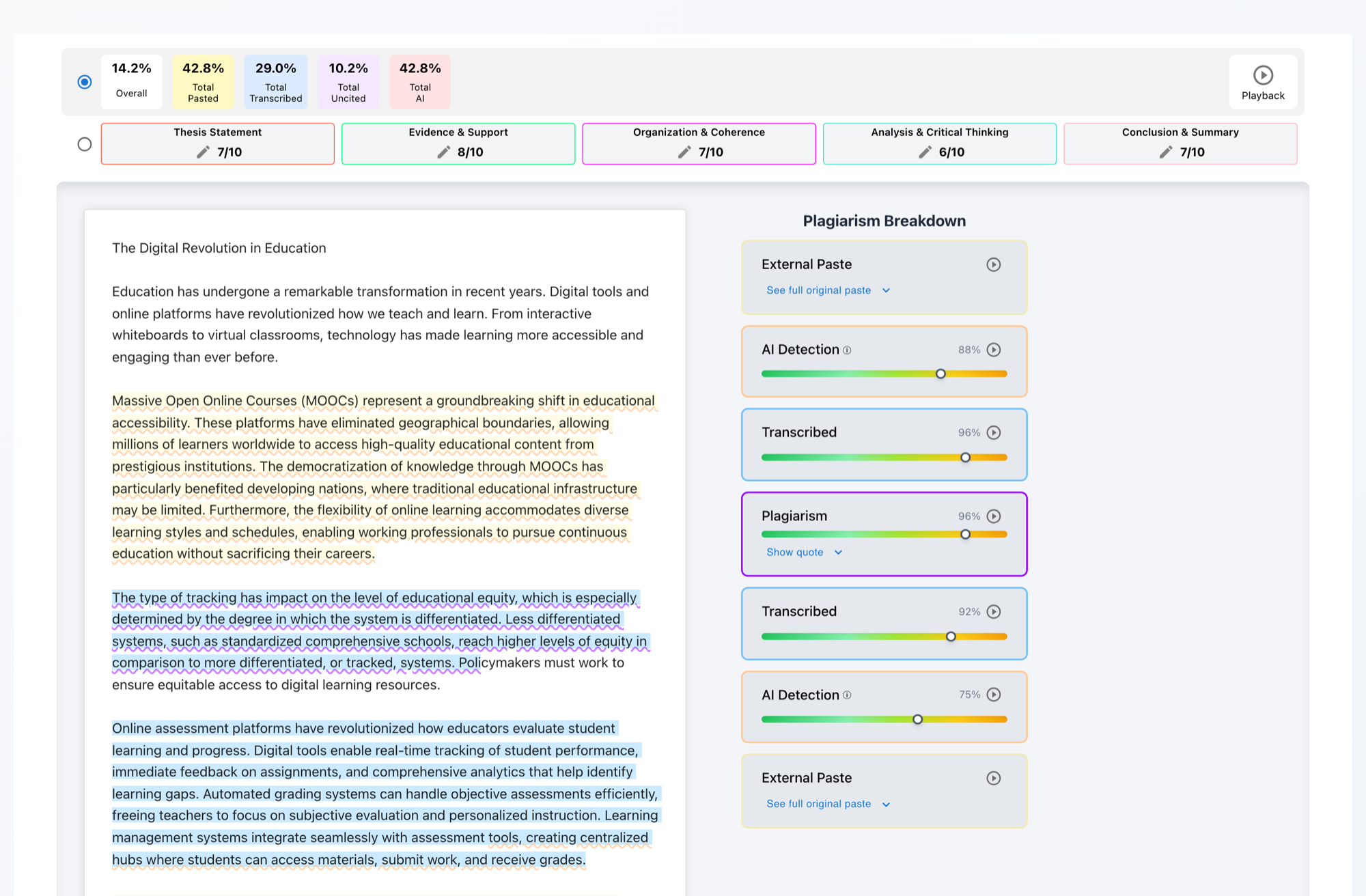
The top of every report shows an Overall score plus four totals - Pasted (content pasted from outside the document), Transcribed (typed while copying another source), Uncited (referenced text with no citation), and AI (text that patterns like AI writing). Hover any tile for its definition.
The Originality Tiles
A tile reading N/A means the text was too short for that detector to run reliably - the report says so instead of guessing.

Step 2: Follow the Highlights
Findings are marked directly in the essay - pasted text, transcription, uncited references, and AI-flagged passages each get their own color. Click any highlight and its evidence card scrolls into view in the Plagiarism Breakdown sidebar; click a card and the essay scrolls to the passage.
Highlights ↔ Evidence Cards
Step 3: Check the Source
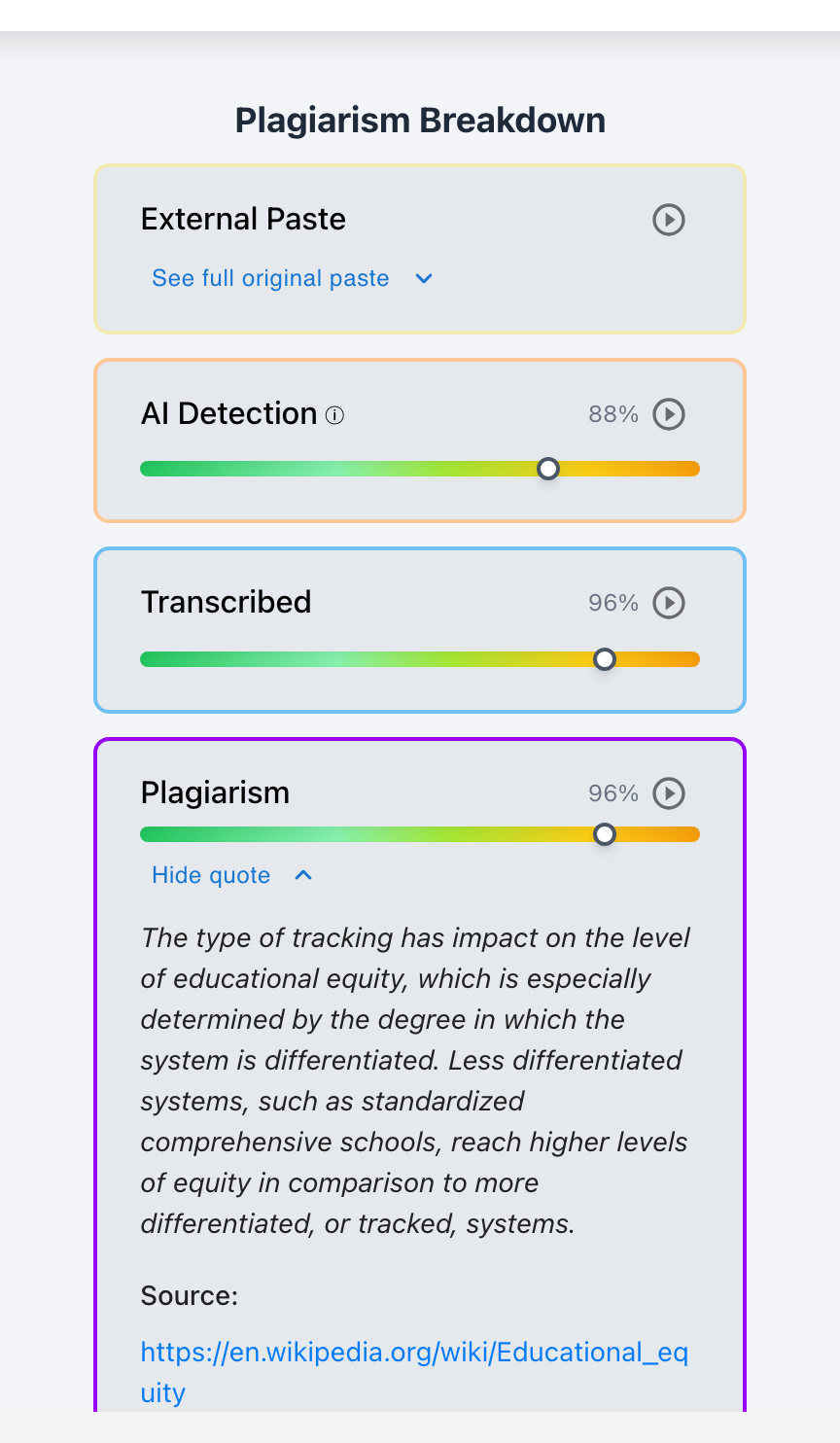
On a Plagiarism card, click Show quote to see the matched passage in full with a link to the source it matches. If the match is against another student's work, the card says Student Submission instead of a URL.
Matched Quote + Source Link
Step 4: See What Was Pasted
External Paste cards keep the complete original pasted text - expand See full original paste to view it, even if the student edited it afterward.
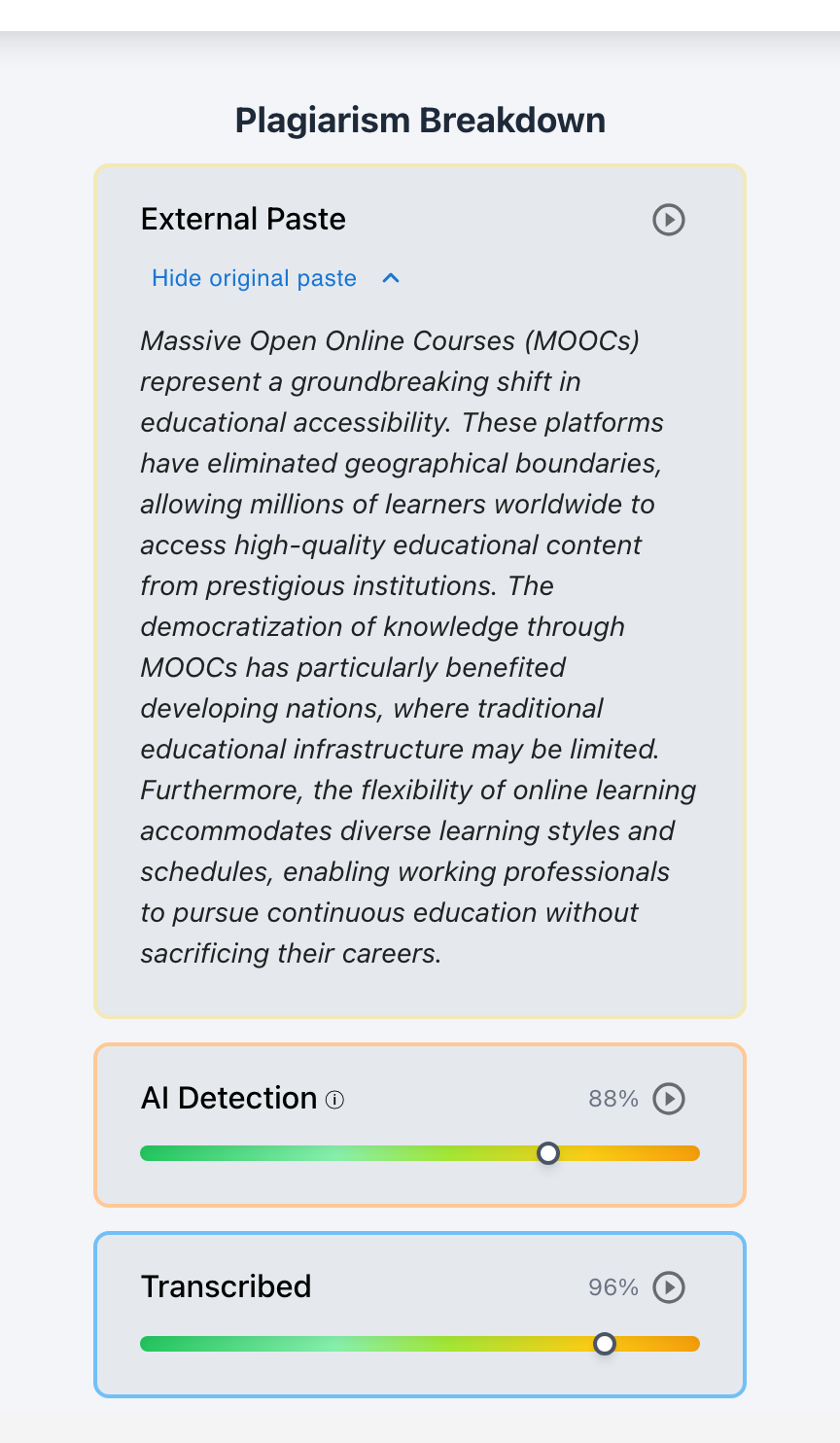
Step 5: Replay the Session
The Playback button (top right of the report) replays the writing session keystroke by keystroke, with 1x–8x speed, ten-second skips, and a scrubber. The play button on any paste card jumps Playback to just before that paste landed - the fastest way to see an event in context.
When is Playback available?
Playback needs writing-process data, which comes with Google Docs submissions (revision history), typed-in essay editors (Canvas and Buzz), and Word documents written with Checkmark's editor tooling. Plain uploaded files still get full plagiarism and AI analysis - the Pasted and Transcribed tiles just read N/A.
Step 6: Switch to the Grading View
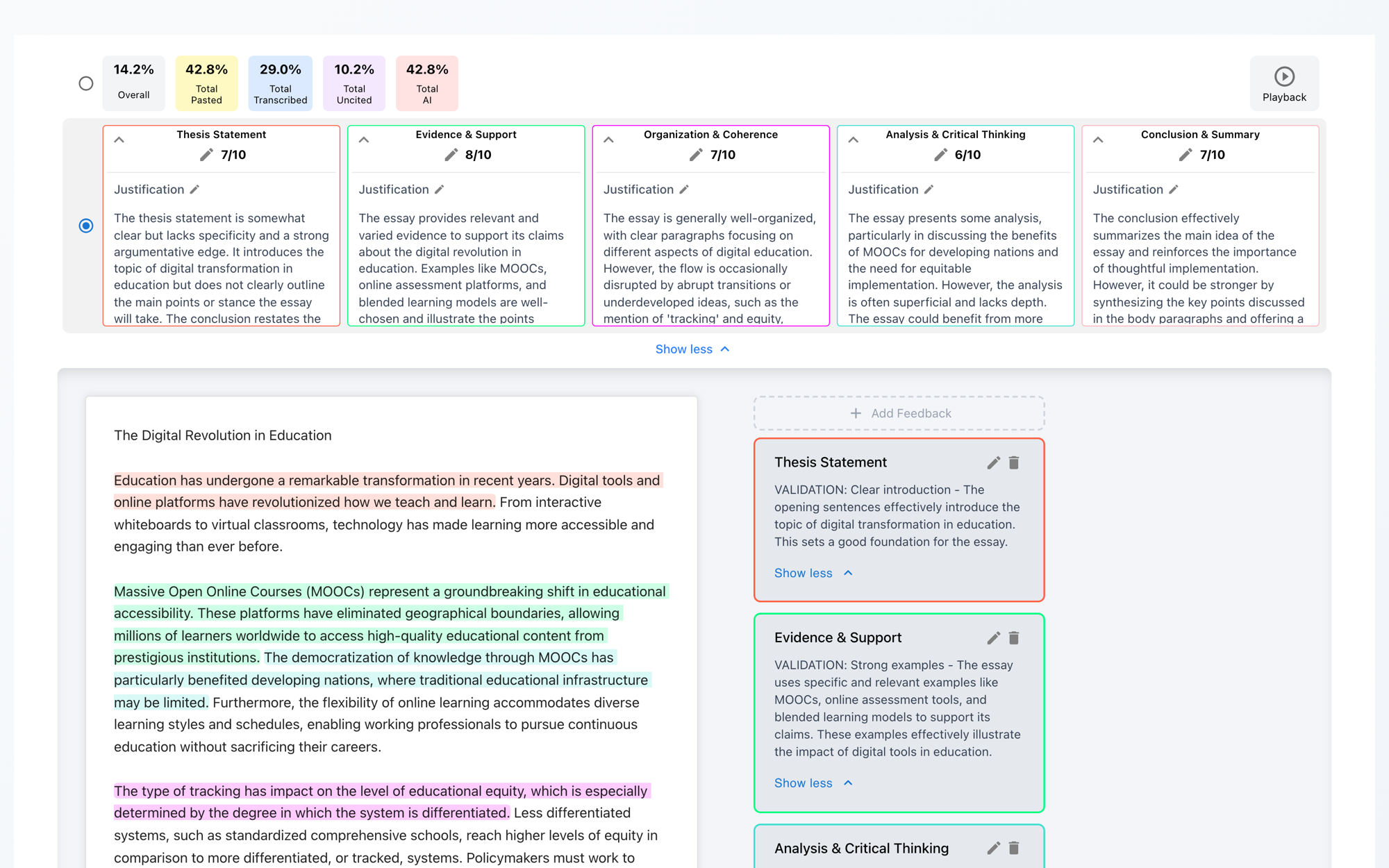
The second row of tiles holds the autograder's per-criterion scores. Select it to see written justifications for each score and quote-anchored feedback cards next to the essay. Everything is editable, and students see nothing until you publish.
Scores, Justifications & Feedback
Flag It - Privately
Every submission carries a status: Not Reviewed, Flagged, Resolved, or Not Flagged. Statuses are visible to teachers only - students never see a flag - so you can track follow-ups without making accusations.
A Note on AI-Writing Signals
AI cards show how strongly a passage resembles generated writing, not who wrote it. Don't rely on the signal alone: pair it with the writing process - paste events, revisions, and typing patterns - before starting a conversation.
Try It on a Real Report
The interactive example report is live - click every card, expand every quote.